Getting Started (Post-Org Setup)
This checklist assumes your organization already exists and you can sign in as the Site Admin.
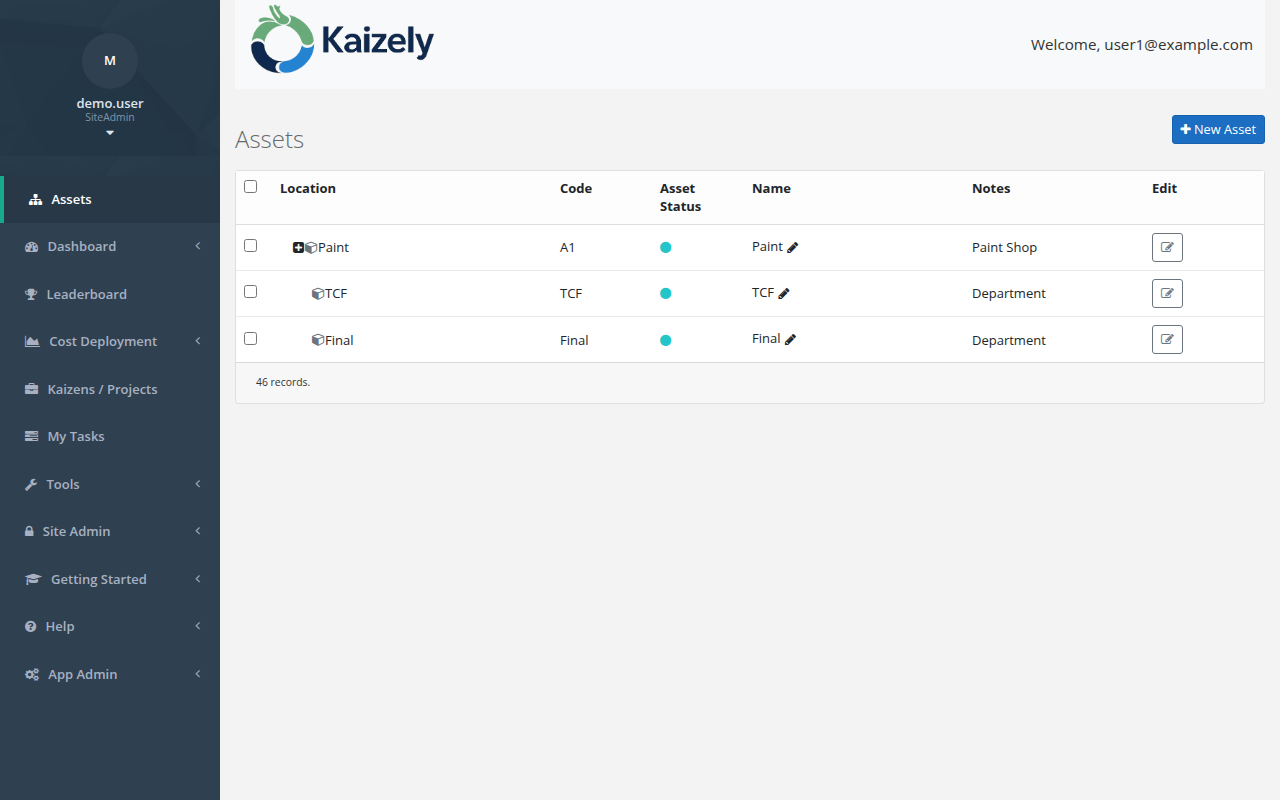 Assets page — start here to build your asset hierarchy and configure cost data.
1) Add your assets
- Go to Assets in the left navigation.
- Create your asset hierarchy (site → area → line → machine, etc.).
- Confirm assets that should participate in live monitoring are marked appropriately (for example, online/offline status where applicable).
2) Populate cost of downtime (hourly loss amounts)
Kaizely uses cost information to help calculate the impact of downtime and to rank opportunities.
- Open an asset’s details page.
- Enter the hourly cost / loss amount values as required for your process.
- Repeat for critical assets first (the ones you want prioritized in analysis).
3) Add downtime reasons (Site Admin)
- Go to Site Admin → Manage Downtime Reasons.
- Add the reason categories your operators/teams will use (e.g., Equipment Failure, Material Shortage).
4) Add loss types (Site Admin)
- Go to Site Admin → Manage Loss Types.
- Add/adjust the loss types you want to track and stratify (these drive Dashboard and C Matrix grouping).
5) (Optional) Add skills and users
- Site Admin → Manage Users to add additional users.
- Site Admin → Manage User Skills and Manage Kaizen Skills to support matching work to the right people.
6) Verify you have data
- Check Dashboard for recent losses and trends.
- Open C Matrix and verify loss type totals appear.
- Open E Matrix for operational downtime tracking.
7) Create your first project
- Go to Projects → Create New Project.
- Select an asset, select a loss type (and loss name if applicable), then fill out project details.
- Submit the project and proceed through the workflow pages (Define Team, Understand the Problem, etc.).
Tip: If you’re not sure where to begin, the Dashboard’s “Recommended New Projects” can create a starter project for you.