Assets
Assets represent your equipment and hierarchy (site/area/line/machine). Accurate assets are critical for meaningful loss stratification.
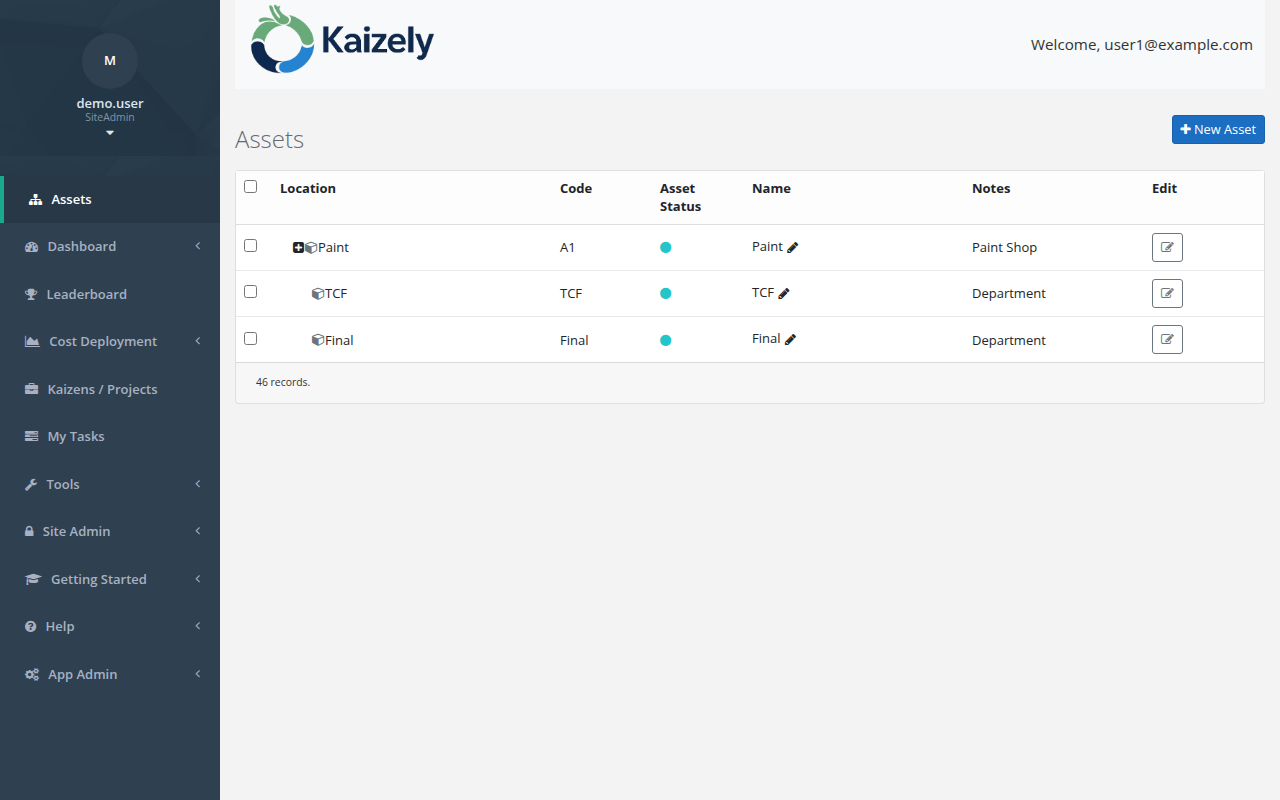 Assets page — navigate the hierarchy tree and configure cost, defect, and tracking data per asset.
Asset tree
- Use the asset tree to navigate your hierarchy.
- Keep naming consistent so reporting and project selection are easy.
Asset details
Asset details typically include configuration used by analytics and downtime tracking, including cost data.
Open an asset
- Go to Assets and select an asset from the tree (or create a new one).
- Open Asset Details.
- Use the tabs in the lower section to configure costs and review tracking information:
- Hourly Losses
- Defect Costs
- Offline Tracking Log
- Asset Losses
Hourly Losses (cost of downtime)
Use Hourly Losses to configure how much downtime costs per hour for an asset, broken down by loss type. These values are used when calculating the cost impact of downtime events.
- Open the asset and go to the Hourly Losses tab.
- Enter amounts for each Loss Type.
- Use Reload to discard unsaved edits and refresh from the database.
- (Site Admin only) Use Apply to descendants to copy the hourly loss amounts to all child assets. This overwrites any existing descendant values.
Defect Costs (cost per occurrence)
Use Defect Costs to configure the cost-per-occurrence for each defect mode on this asset. These costs are used when calculating quality loss totals (for example when ingesting daily quality loss records).
- Open the asset and go to the Defect Costs tab.
- Enter Cost / Occurrence for each Defect Mode.
- Click Save to persist your changes. (You must save the asset first before defect costs can be edited.)
- (Site Admin only) Click Apply to descendants to copy these defect costs to all child assets. This overwrites any existing descendant values.
- Use Reload to refresh the list from the database.
Online / Offline status (Downtime tracking)
Each saved asset has an Online/Offline switch near the top-right of the details page. When you mark an asset Offline, Kaizely opens a downtime record. When you switch it back to Running, Kaizely closes the open downtime record and calculates the downtime cost using the hourly loss values configured above.
- Open an existing (saved) asset.
- Use the switch to change the state:
- Running = asset online
- Offline = asset offline and downtime is being tracked
-
When switching to Offline:
- If your organization has a downtime reason named Offline, it will be selected automatically.
- Otherwise, Kaizely will prompt you to pick a downtime reason.
- When switching back to Running, the current downtime event is ended automatically.
Offline Tracking Log
Use the Offline Tracking Log tab to review offline/downtime events recorded for the asset. This is useful for auditing when the asset went offline, why, and (where available) the calculated cost.